
Transfer Metrics to Another Member
From the Member Profile screen, Customer Service Representatives can transfer Metrics from one Member's balance to another Member's balance.
The details of the transfer itself are managed through the use of a Metric Transfer type Reward. This Reward must already be defined and published before you can submit the Metric transfer on the Member Profile screen. Please see Configure a Reward - Metric Transfer for more information on this process.
Within the Metric Transfer Reward configuration, you can define the following requirements that govern the transfer process:
-
Required Metric: Optionally, the Metric quantity and type to be deducted from the sending Member as the "cost" of redeeming the Reward. This value does not represent the Metrics being transferred. Instead, if you enter a value here, the platform will deduct this value from the sending Member's balance before the transfer is executed. For example, let's say you entered "5 Points" in this field, then executed a transfer of 10 Points. The platform would deduct a total of 15 Points from the sending Member, but the receiving Member would gain only 10 Points. For most common use cases, the Required Metric quantity should be "0."
-
Transfer Metric Name: The Metric type being transferred from the sending Member to the recipient Member. The Metric quantity is configured as part of the transfer (see below).
-
Minimum Metric: The minimum Metric quantity that can be transferred in a single transaction.
-
Maximum Metric: The maximum Metric quantity that can be transferred in a single transaction.
-
Max Limit: The maximum Metric quantity that can be transferred to the same Member.
To execute a Metric transfer between Members:
-
Select Members from the top navigation bar, then select CSR > People from the side navigation menu. The People screen is displayed.
-
On the People screen, search for and select the desired Member (see
-
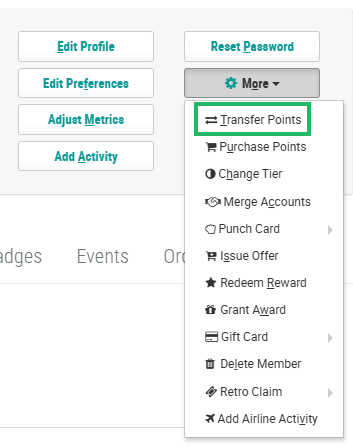
Within the header section of the screen, click More > Transfer Points. The Transfer Points to Another Member pop-up window is displayed.
-
From the Transfer Type drop-down menu, select the desired Reward. This drop-down menu is populated with all published Rewards of type Metric Transfer. Once you choose a Reward, the pop-up window displays the configuration details of the selected Reward, including any minimum / maximum thresholds, the Member's current Metric balance, etc.
-
In the Transfer To field, search for and select the desired Member to receive the Metric transfer.
-
The next field is named based on the Metric being transferred (such as Points for example). This field will automatically be populated with the Minimum Metric quantity, if one has been defined for this Reward. Optionally enter a different Metric quantity to transfer.
-
Optionally, in the Reason text field, enter the reason for the Metric transfer.
-
Optionally, in the Internal Note text field, enter any additional information about the transfer.
-
Click Submit.
